CxFmsReportCtrl Example
Use the CxFmsReportCtrl object to display and manipulate an ActiveX CygNet FMS Report Control in a CygNet Studio screen environment.
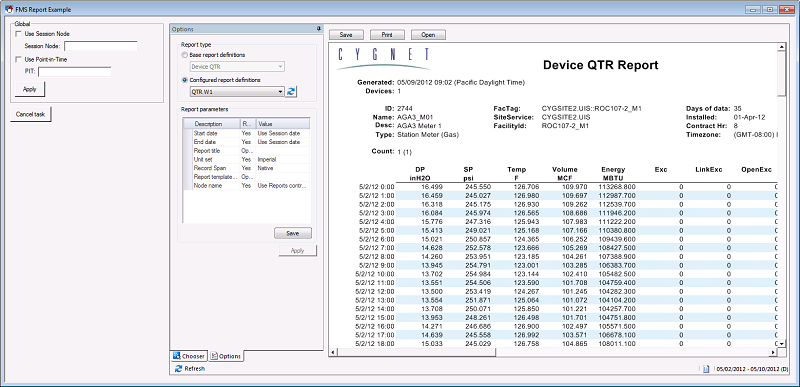
|
| CygNet FMS Report Control Example |
To see an example FMS Report control implemented in a pre-designed screen, open the FMS Report Ctrl.csf file found in the APPS SCREXAMP or in the CygNet\Clients\CStudio\Screens\Examples folder.
CygNet Studio Screen Script: FMS Report Ctrl.csf
Copy
CxFmsReportCtrl Example
Sub btnApply_EventClick()
Dim This : Set This = btnApply
FmsReport.SessionNodeTag = editSessionNode.Text
FmsReport.PITDateTime = editPIT.Text
FmsReport.UsePIT = checkUsePIT.Check
FmsReport.Apply True
End Sub
Sub btnCancel_EventClick()
Dim This : Set This = btnCancel
FmsReport.Cancel
End Sub
Sub checkUsePIT_EventChange()
Dim This : Set This = checkUsePIT
FmsReport.UsePIT = this.Check
editPIT.Enable this.Check
End Sub
Sub checkUseSessionNode_EventChange()
Dim This : Set This = checkUseSessionNode
FmsReport.checkUseSessionNode = this.Check
End Sub
Sub TheView_EventInitialize()
Dim This : Set This = TheView
checkUseSessionNode.Check = FmsReport.UseSessionNode
editSessionNode.Text = FmsReport.SessionNodeTag
checkUsePIT.Check = FmsReport.UsePIT
editPIT.Text = FmsReport.PITDateTime
editPIT.Enable = FmsReport.UsePIT
End Sub

